Getting Ready for Inbound Conversations
Inbound conversations happen when a customer sends you a WhatsApp message first, and your team replies. While it may sound simple, WhatsApp has specific rules about how and when you can respond. This guide walks you through everything you need to know to start handling these conversations smoothly in Sanoflow.
What we’ll cover:
- Understanding the Customer Service Window
- Sending WhatsApp Message Templates
- Adding a WhatsApp button to your Facebook page
Understanding the Customer Service Window
The Customer Service Window is a 24-hour period that starts when a customer sends you a message.
- If you reply within 24 hours, the conversation is considered active, and all replies are included in one free session.
- If more than 24 hours pass without a reply, you’ll need to use a WhatsApp Message Template to restart the conversation. Meta charges a fee for sending these templates.
Example: A client messages you at 10:00 AM on Monday. If you reply before Tuesday's 10:00 AM, you’re within the window. After that, the window closes, and you must use a pre-approved template to continue the conversation.
How to Send a WhatsApp Message Template
When you need to reach out after the 24-hour window closes, you must send a Message Template. Templates are pre-approved messages designed for things like follow-ups, reminders, or marketing promotions.
Sample template example:
“Hello {{clientName}}, we’re following up on your recent visit. Is there anything you’d like help with today?”
Steps to send a message template:
- Go to any conversation that has been inactive for more than 24 hours in the Inbox.
- Click on Send Message Template in the message bar.
- Choose your template and fill in any dynamic fields like names or dates.
- Review your message and click Send.
Tip: Make sure you have enough WhatsApp campaign credits in your Sanoflow account before sending.
Learn more about creating and managing templates.
Adding a WhatsApp Button to Your Facebook Page
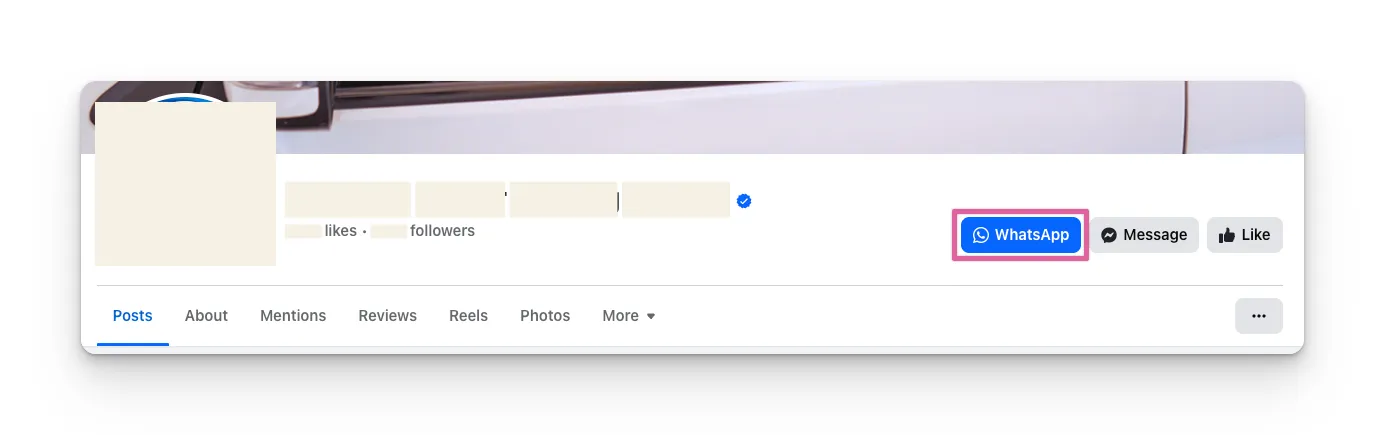
Adding a WhatsApp button to your Facebook page makes it easier for customers to message you directly.
What you’ll need:
- A WhatsApp Business Account (WABA) connected to your phone number.
- A Facebook Business Page.
Steps to set it up:
- Go to your Facebook page and click Settings.
- Navigate to Linked Accounts.
- Select WhatsApp and choose the phone number linked to your WABA.
- Click Send WhatsApp Code to verify the number.
- Enter the verification code you received on WhatsApp.
- Click Add Button to display the WhatsApp button on your Facebook page.
Next Steps
Now that you’ve set up your inbound workflow:
- Reply to customers within the 24-hour window to keep conversations active.
- Use message templates to re-engage customers after the window closes.
- Promote your WhatsApp channel by adding entry points like Facebook buttons or QR codes.